Walkthrough from healdemo.com
This guide walks through walkthrough from healdemo.com at healdemo.com.
Steps
- Access the healing inbox to review and manage self-healing updates.
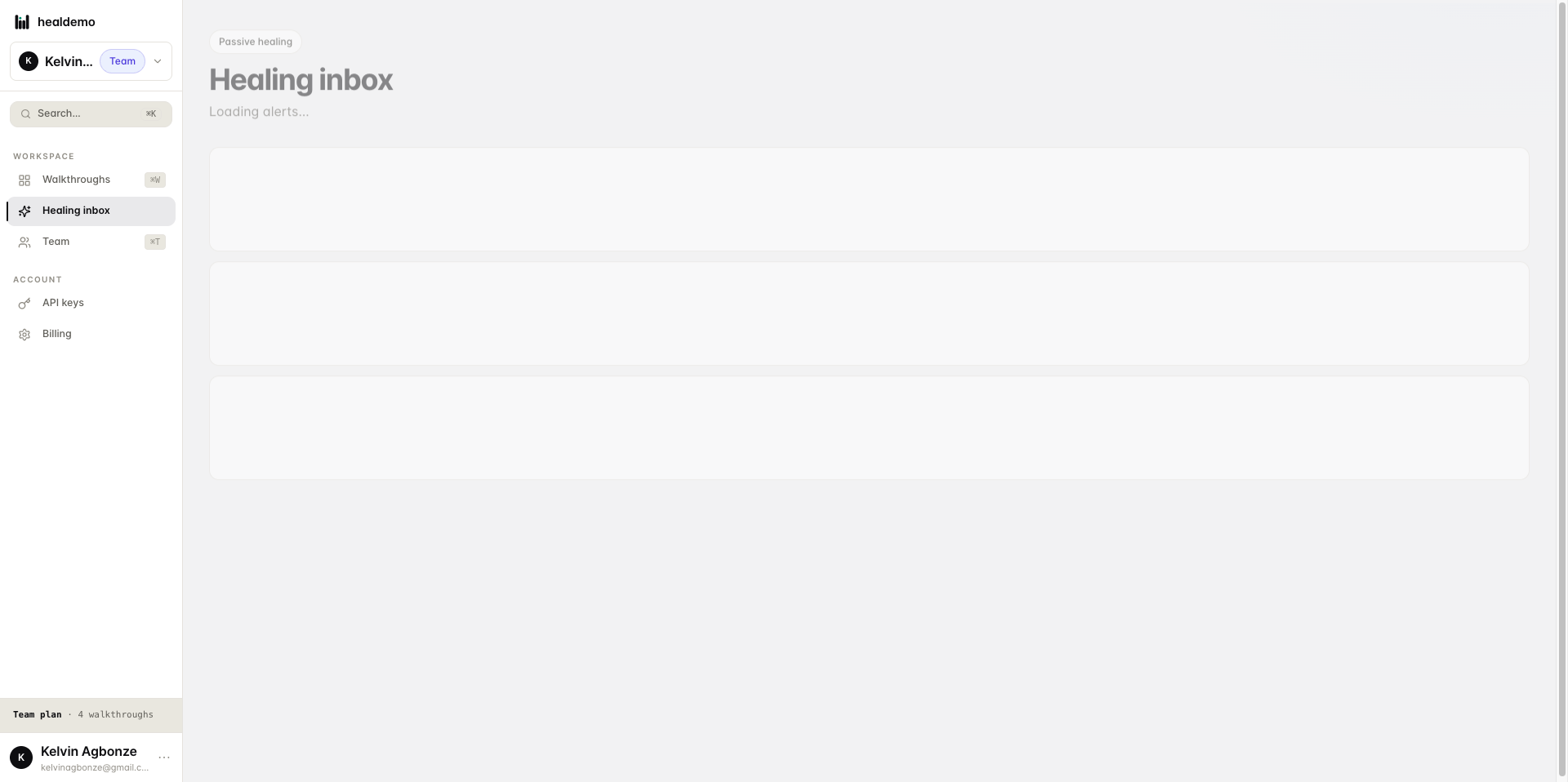
Click Healing inbox to review and manage all pending self-healing updates in one place.
- Access the healing inbox to review and manage self-healing updates.
Click Healing inbox to review and manage all pending self-healing updates in one place.
- Access the healing inbox to review and manage self-healing updates.
Click Healing inbox to review and manage all pending self-healing updates in one place.
- Navigate to or view the Walkthroughs section.
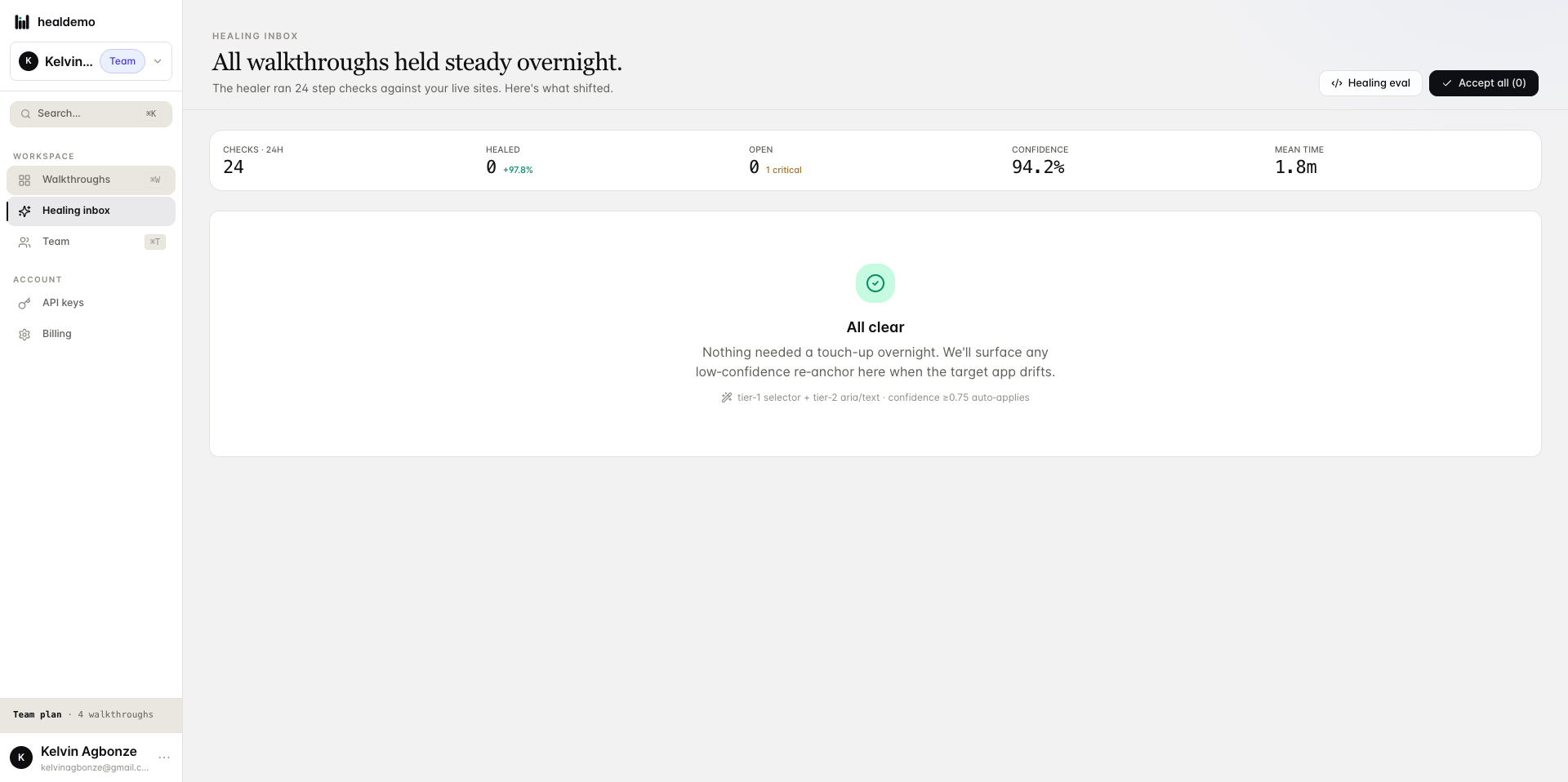
Click Walkthroughs to browse and manage all your guided tours in one place.
- Navigate to or view the Walkthroughs section.
Click Walkthroughs to browse and manage all your guided tours in one place.
- Navigate to or view the Walkthroughs section.
Click Walkthroughs to browse and manage all your guided tours in one place.
- Navigate to or access the Team section.
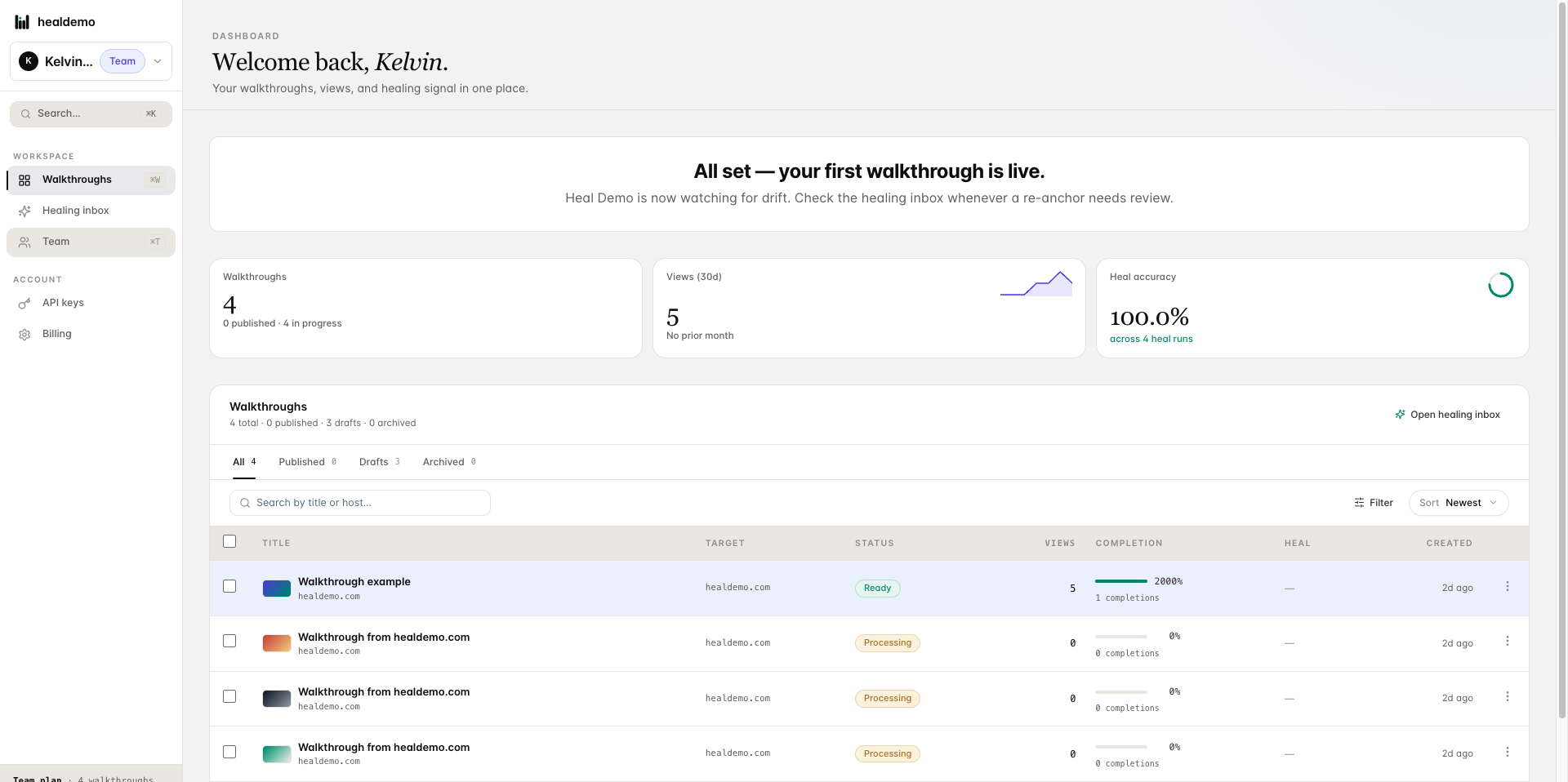
Click Team to view and manage your team members and their roles.
- Navigate to or access the Team section.
Click Team to view and manage your team members and their roles.
- Navigate to or access the Team section.
Click Team to view and manage your team members and their roles.
- Send an invite to a user by entering their email address.
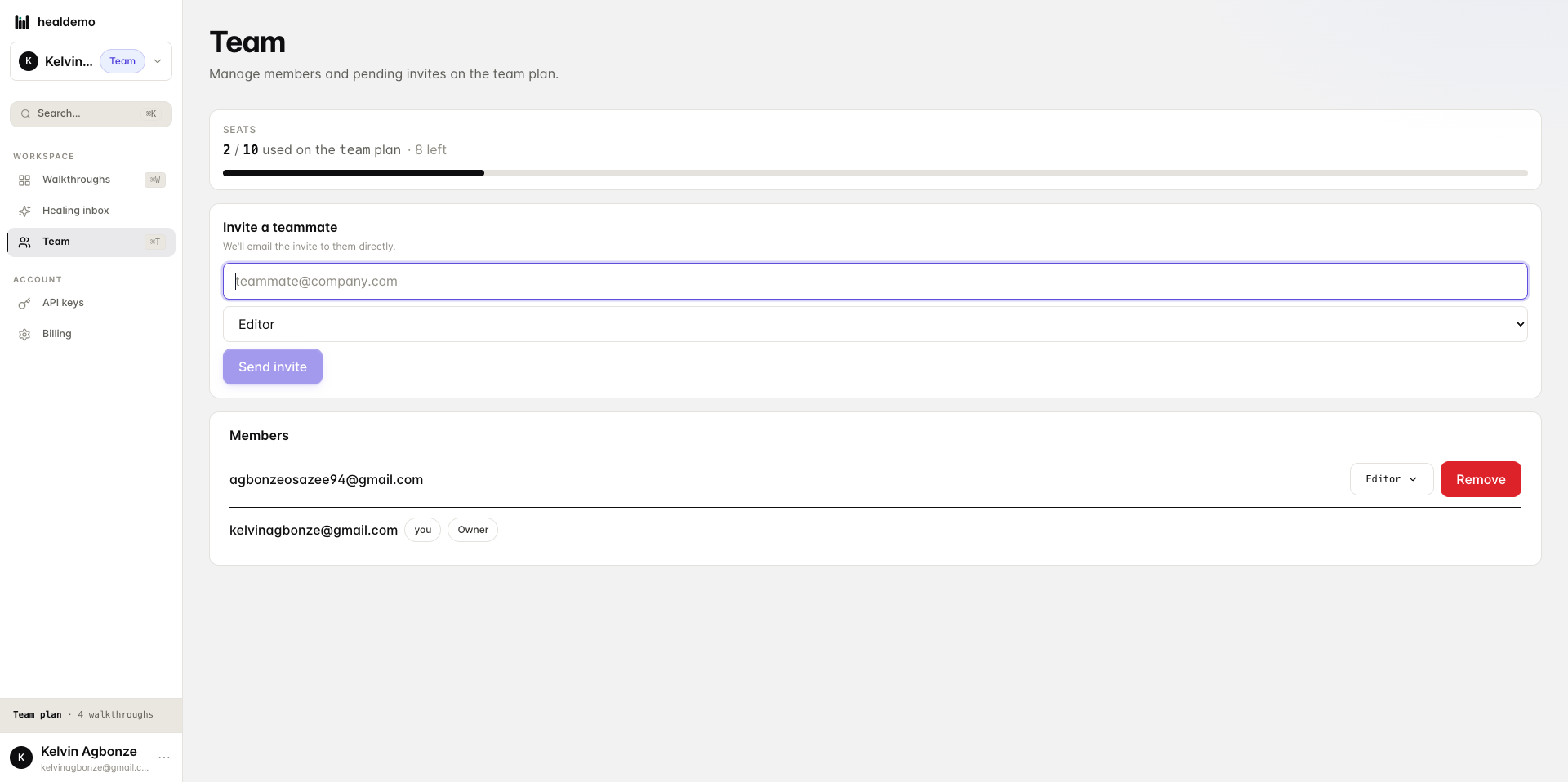
Enter the recipient's email address and click "Send Invite" to give them access.
- Send an invite to a user by entering their email address.
Enter the recipient's email address and click "Send Invite" to give them access.
- Send an invite to a user by entering their email address.
Enter the recipient's email address and click "Send Invite" to give them access.
Generated by Heal Demo. Regenerates when the walkthrough heals.