Walkthrough example
This guide walks through walkthrough example at healdemo.com.
Steps
- View the "Viewer + iframe + docs, every time" feature section.
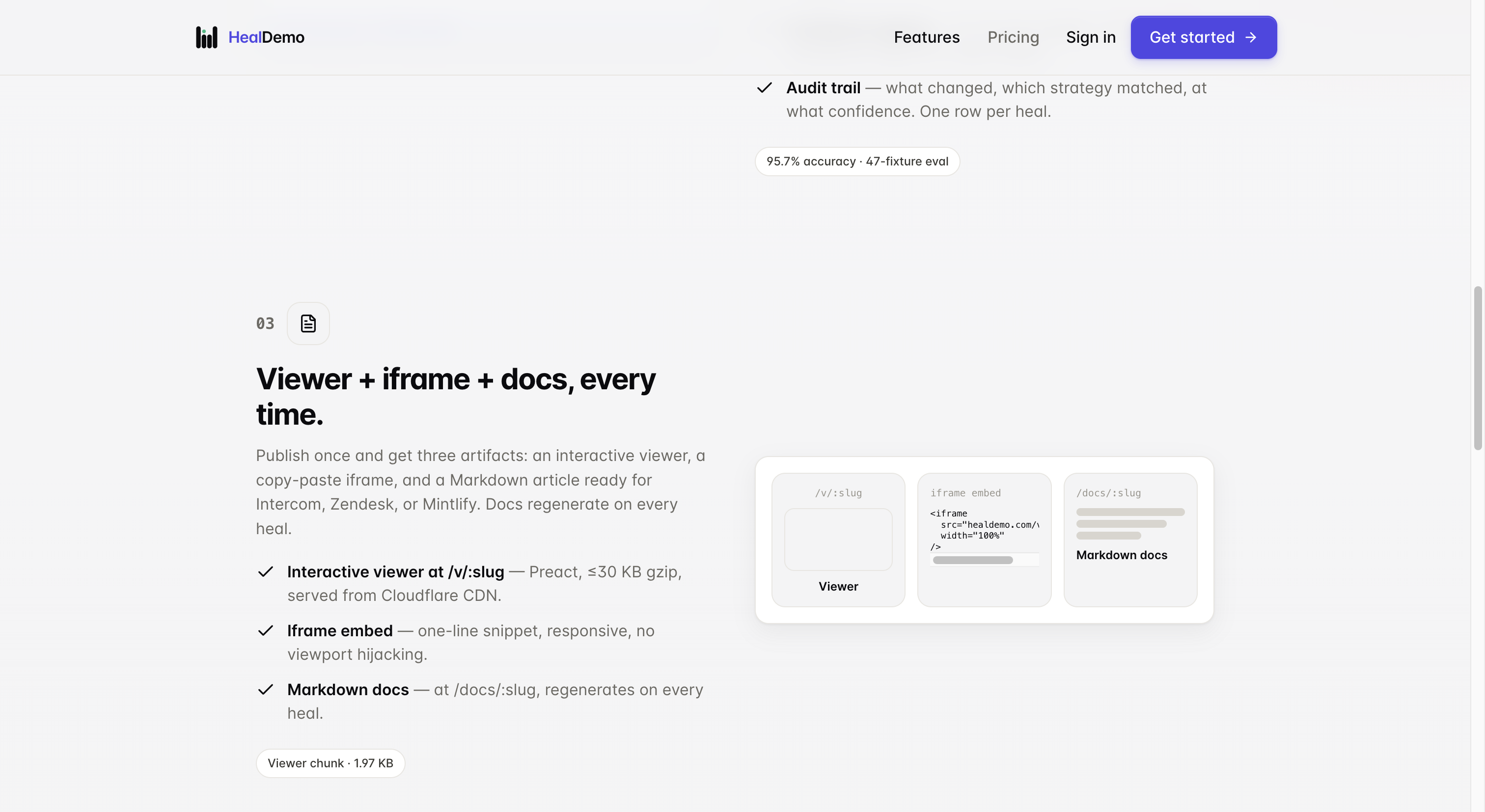
Click "Viewer + iframe + docs, every time" to explore how this feature works in detail.
- View the "Viewer + iframe + docs, every time" feature section.
Click "Viewer + iframe + docs, every time" to explore how this feature works in detail.
- View the healing inbox with 2 pending drifts
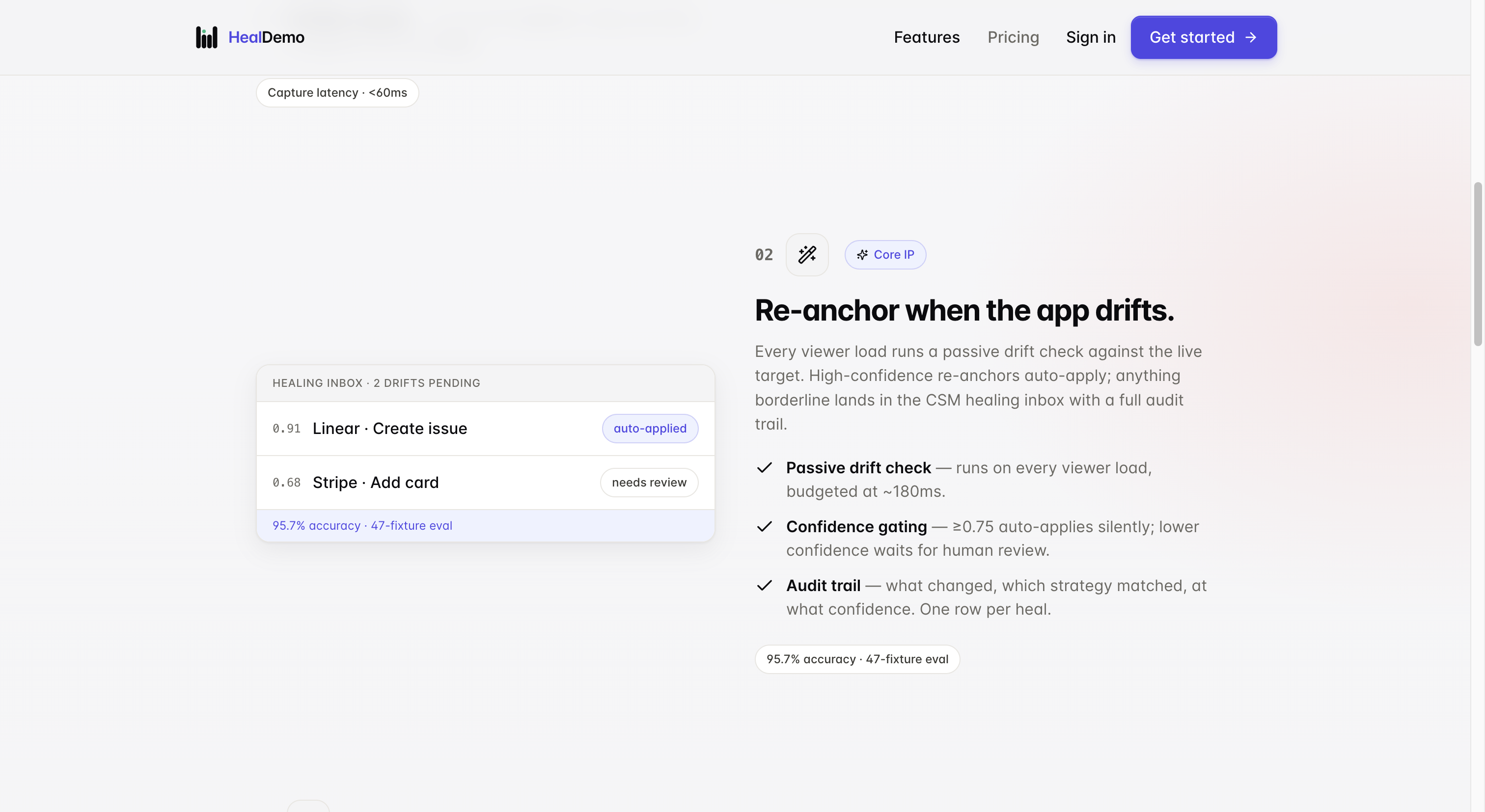
Click Healing inbox to review and resolve your 2 pending drifts.
- View the healing inbox with 2 pending drifts
Click Healing inbox to review and resolve your 2 pending drifts.
- View or manage API keys.
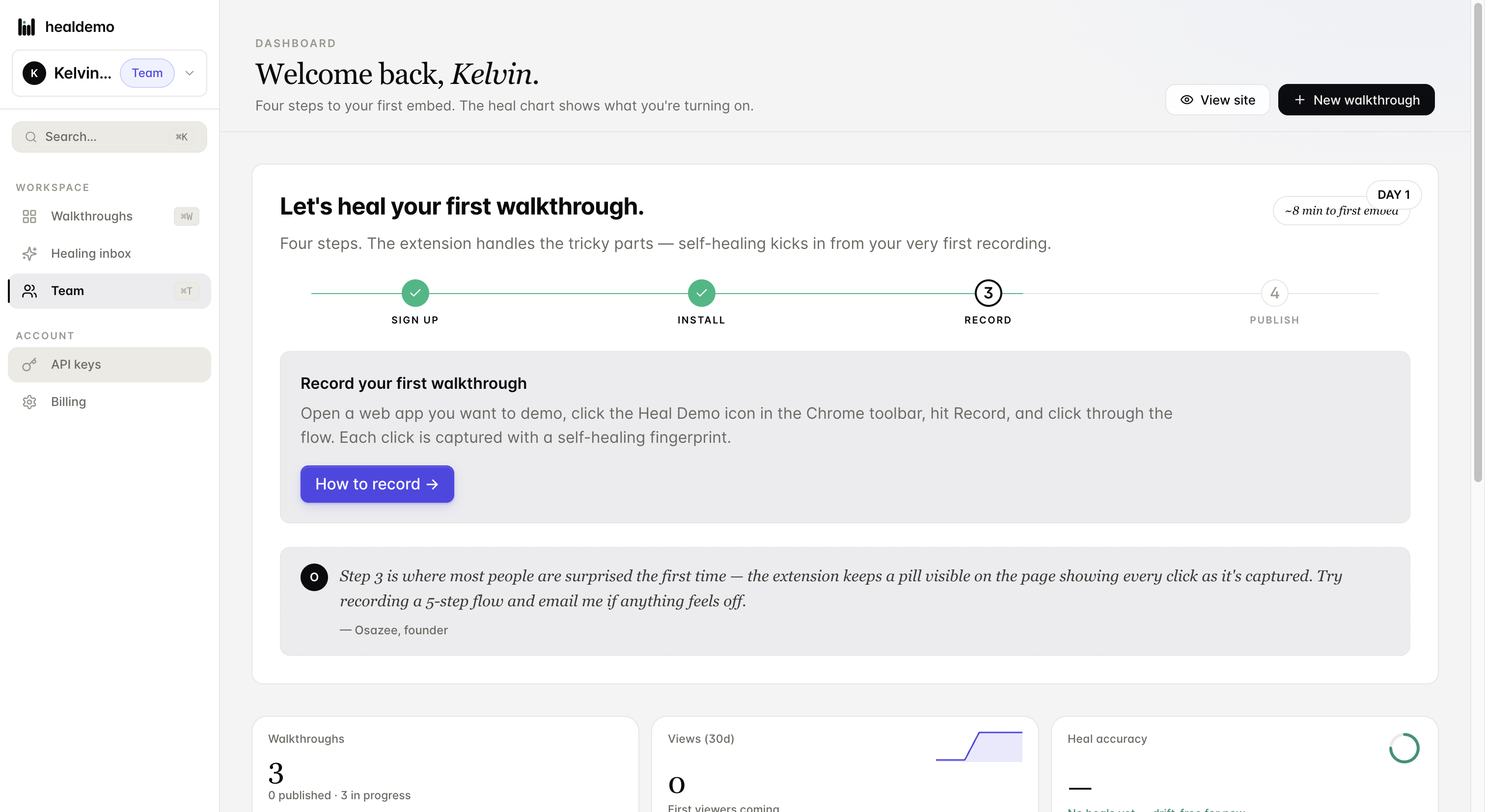
Click API keys to view, create, or revoke the keys used to authenticate your API requests.
- View or manage API keys.
Click API keys to view, create, or revoke the keys used to authenticate your API requests.
- Navigate to or select the Walkthroughs section
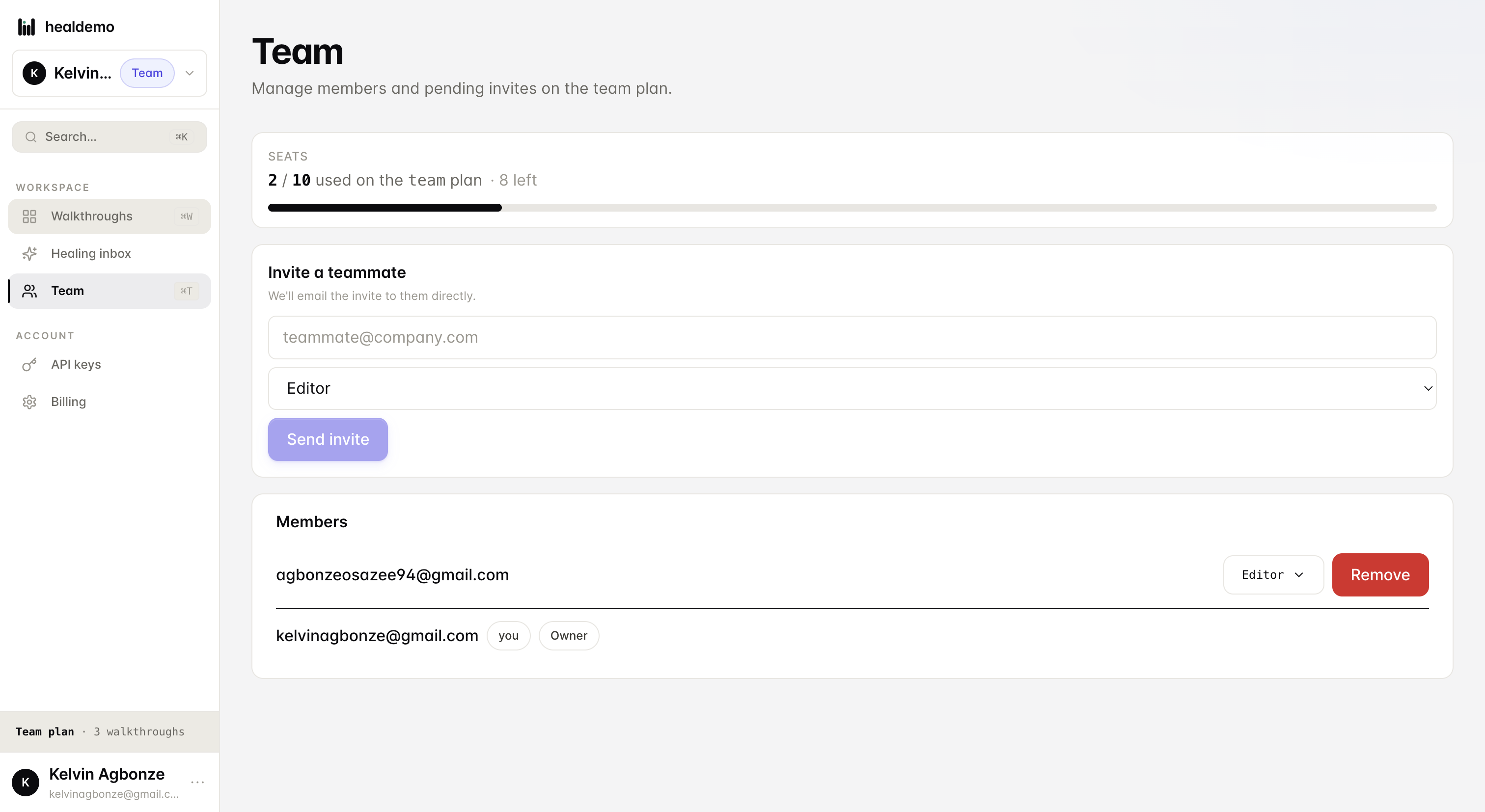
Click Walkthroughs to view and manage all your guided product tours in one place.
- Navigate to or select the Walkthroughs section
Click Walkthroughs to view and manage all your guided product tours in one place.
- Access the billing section
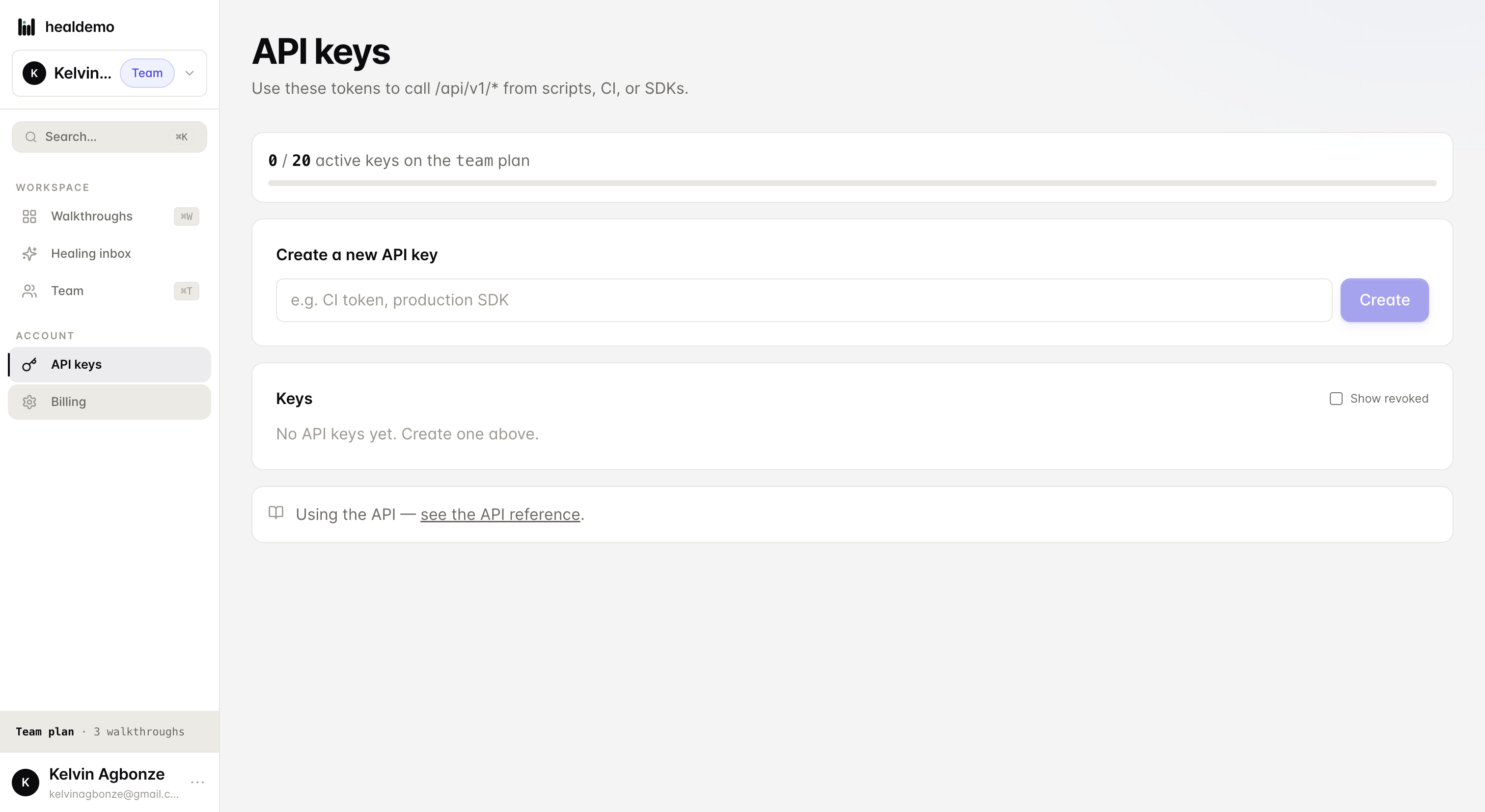
Click Billing to view invoices, manage payment methods, and update your subscription plan.
- Access the billing section
Click Billing to view invoices, manage payment methods, and update your subscription plan.
- Navigate to the recording instructions or guide.
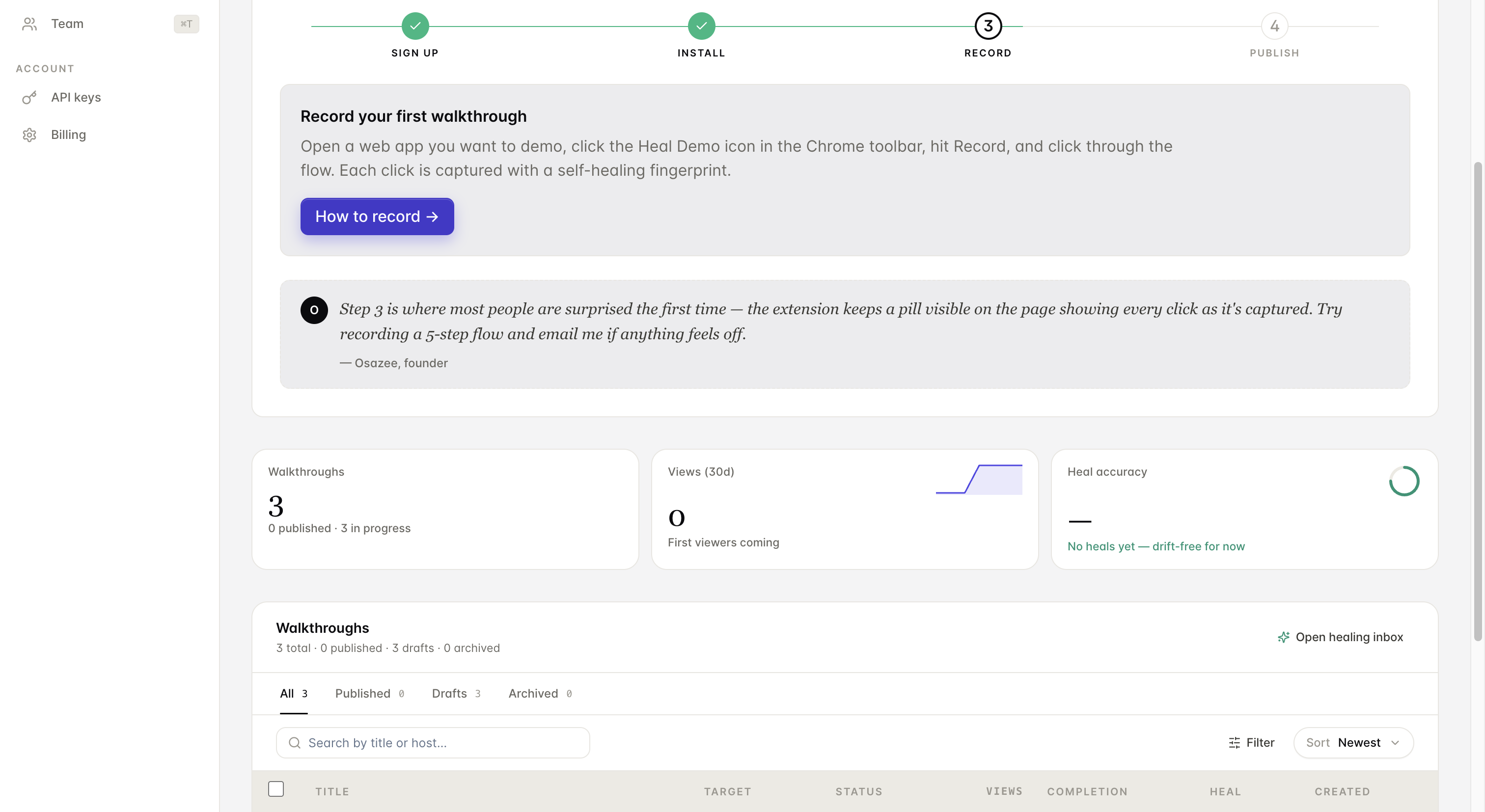
Click How to record → to open step-by-step instructions for capturing your recording.
- Navigate to the recording instructions or guide.
Click How to record → to open step-by-step instructions for capturing your recording.
- Navigate to the Walkthroughs section.
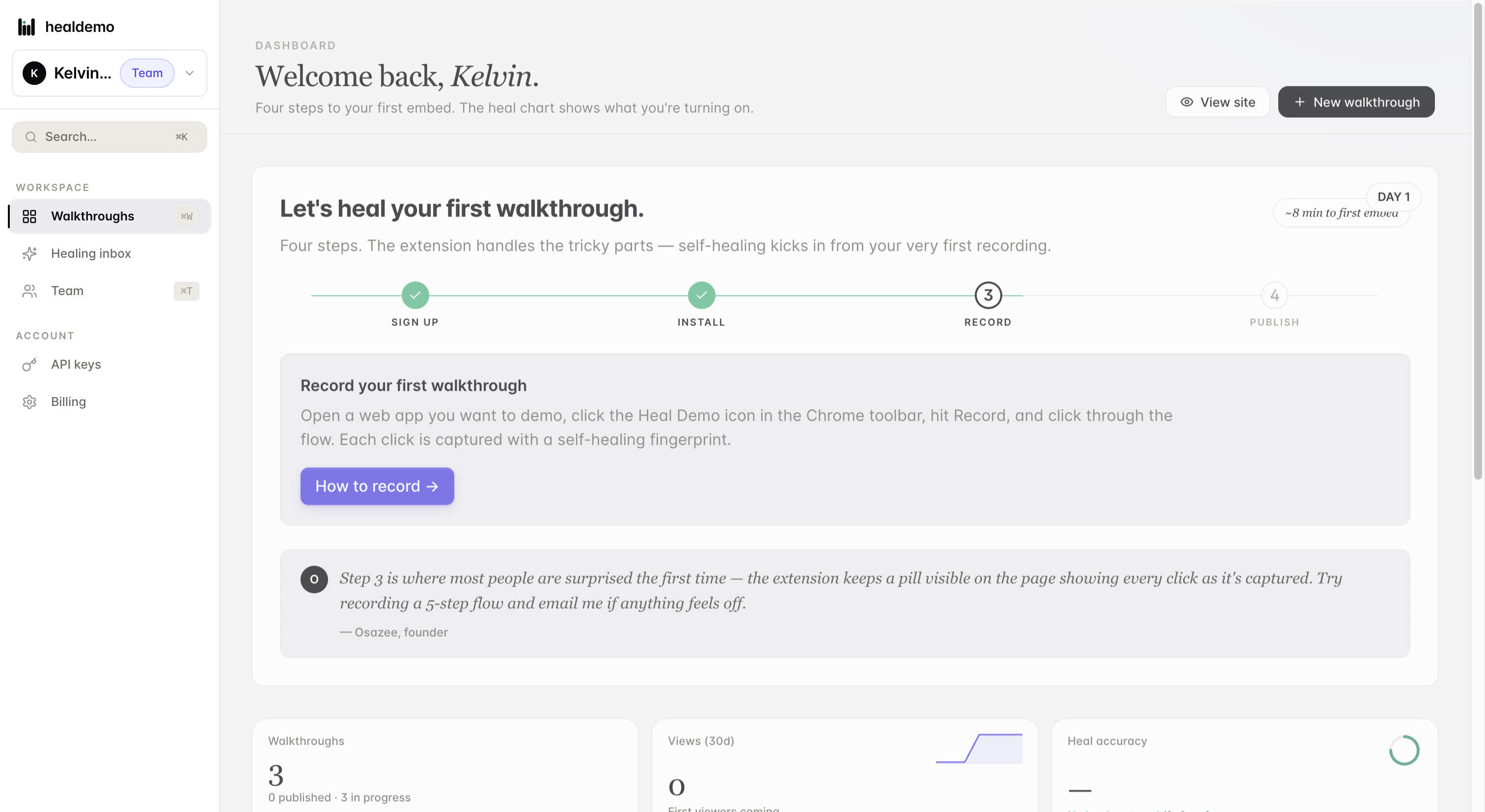
Click Walkthroughs to view and manage all your guided product tours in one place.
- Navigate to the Walkthroughs section.
Click Walkthroughs to view and manage all your guided product tours in one place.
- View a comparison of Heal Demo against competing tools and solutions.
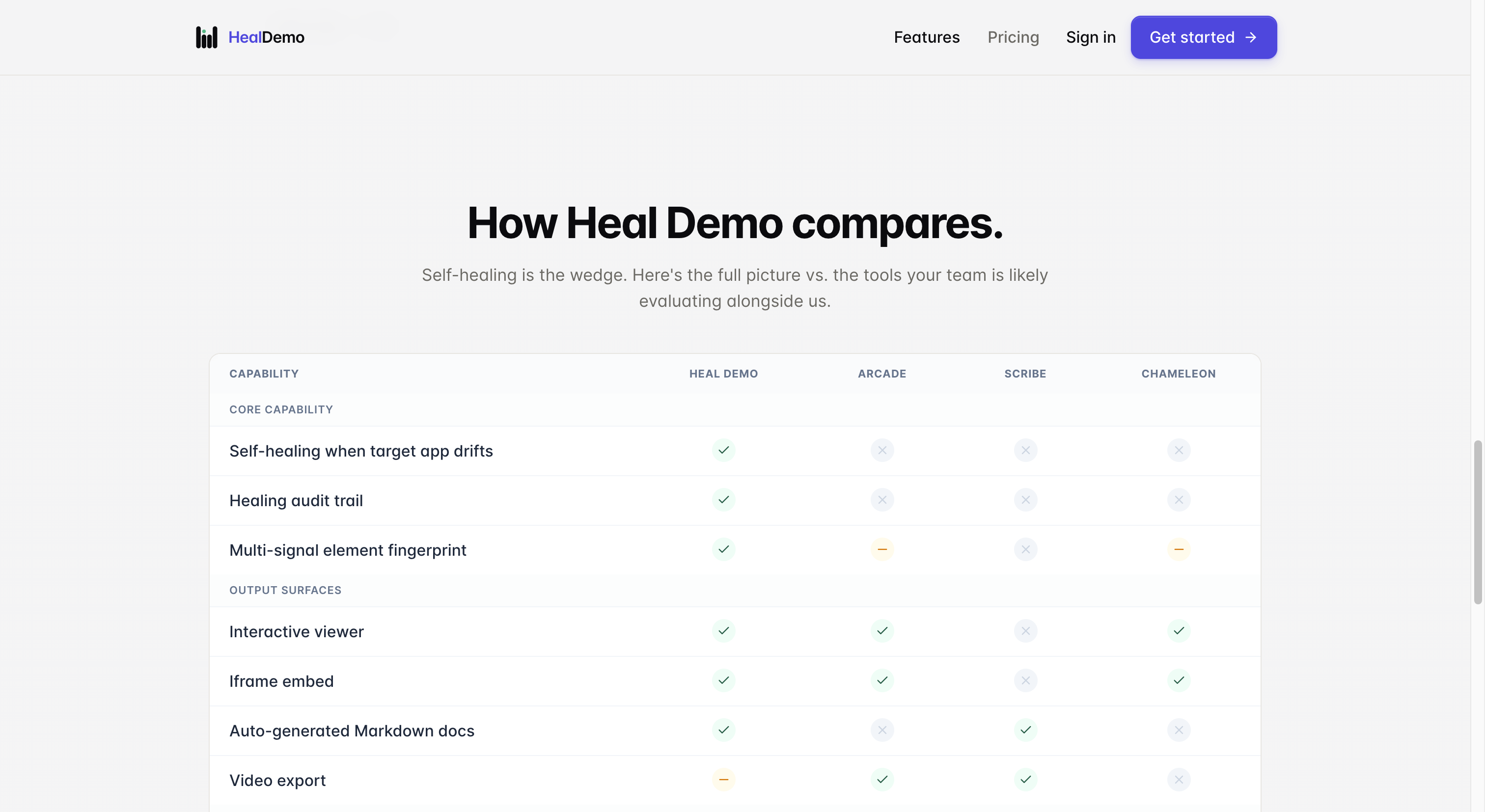
Click How Heal Demo compares to see a side-by-side breakdown of Heal Demo versus competing tools.
- View a comparison of Heal Demo against competing tools and solutions.
Click How Heal Demo compares to see a side-by-side breakdown of Heal Demo versus competing tools.
- Navigate to the recording instructions or tutorial section.
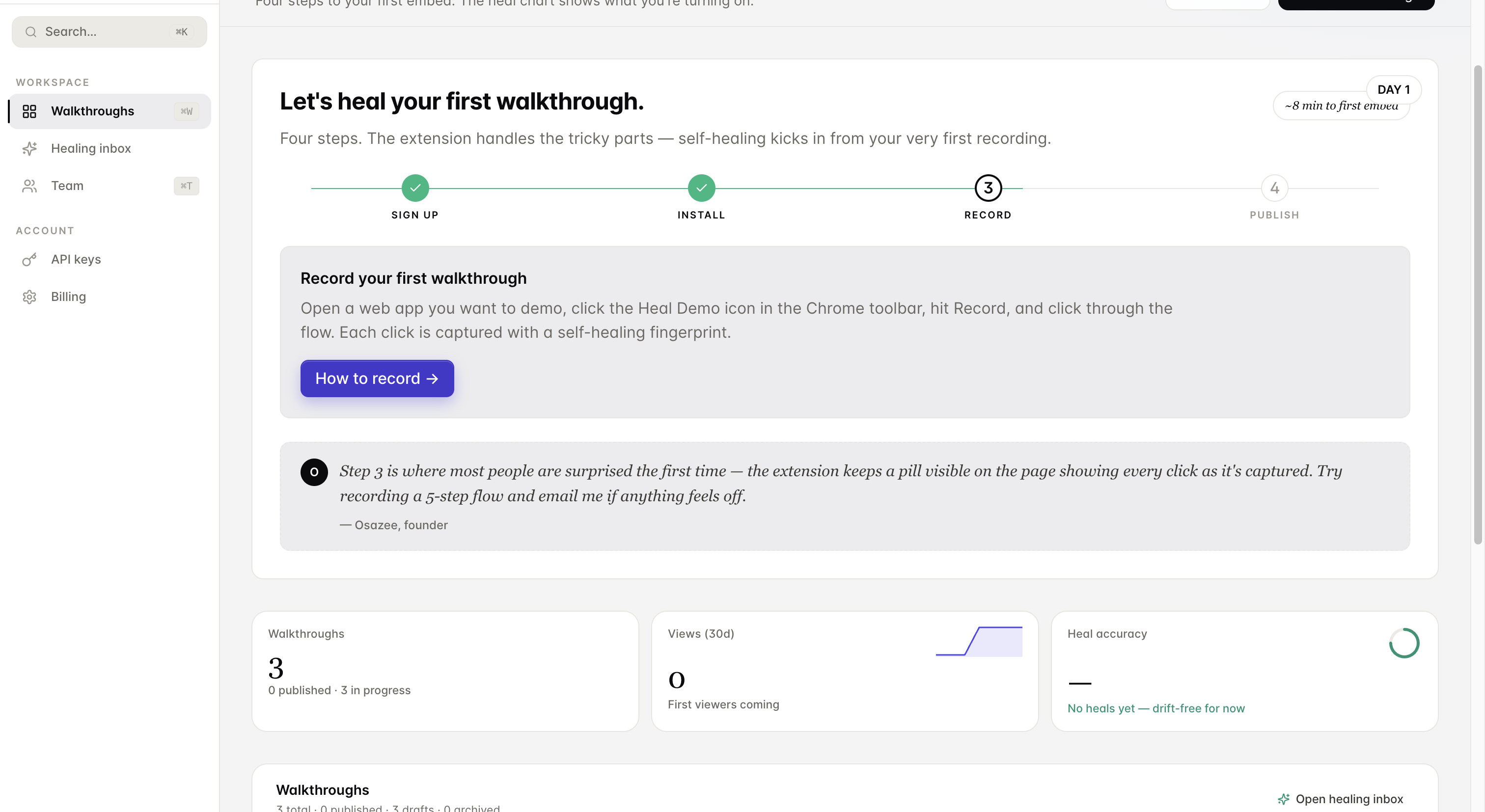
Click "How to record →" to open step-by-step recording instructions.
- Navigate to the recording instructions or tutorial section.
Click "How to record →" to open step-by-step recording instructions.
Generated by Heal Demo. Regenerates when the walkthrough heals.